How to Optimize Images for SEO: Alt Text, Compression, and Image Sitemap Best Practices
A practical guide to image SEO covering format selection, WebP and AVIF, compression, alt text, responsive images, rich text image processing, image sitemaps, and Core Web Vitals.
Image SEO is about much more than adding `alt` text. In practice, effective image optimization includes format selection, compression, file naming, responsive delivery, loading strategy, image sitemaps, and Core Web Vitals.
If an image is oversized, poorly named, missing semantic signals, or served as the same large asset to every device, it can hurt both search visibility and user experience. For content-driven sites, image optimization affects both discoverability and performance.
Why image SEO matters
Images help search engines understand what a page is about, and they can also appear in Google Images.
They are also a major performance factor. On many content pages, the largest image above the fold becomes the LCP element, which means image optimization directly influences Core Web Vitals.
From an SEO perspective, image optimization improves:
- - content relevance
- - crawl and indexing quality
- - page speed and user experience
Choose the right image format: JPG, PNG, WebP, AVIF, and SVG for icons
Different formats serve different purposes, and the easiest way to explain them is through a simple table:
Format | Main advantage | Best use case |
JPG | Broad compatibility and solid photo compression | Photographs and complex colorful images |
PNG | Transparency support and sharp edges | Logos, simple graphics, transparent assets |
WebP | Smaller file sizes with good quality | Most web content images and the default choice for many sites |
AVIF | Better compression efficiency | Performance-focused sites with a mature delivery pipeline |
A practical rule is simple: use WebP as the default for most web content images, and then choose JPG, PNG, or AVIF only when the specific use case requires it.
For UI icons, avoid shipping lots of separate small image files. In most cases, `SVG` is a better choice, and for repeated icon patterns, an `SVG sprite` can reduce unnecessary asset requests and improve rendering efficiency. That does not improve SEO directly on its own, but it supports better page performance, which indirectly helps SEO.
Compress images without hurting quality
The goal of image compression is not simply to make files smaller. It is to reduce file size while preserving acceptable visual quality.
For many websites, `70% to 80%` is a practical starting range. In real projects, `75%` is often a solid baseline, but the final setting should always be validated visually.
If you use Node.js in your build or upload pipeline, tools like `Sharp` can automatically resize and compress images, generate WebP output, and standardize delivery.
import sharp from "sharp";
import path from "node:path";
import fs from "node:fs/promises";
const widths = [480, 768, 1200];
export async function generateResponsiveWebp(inputPath: string, outputDir: string) {
  await fs.mkdir(outputDir, { recursive: true });
  const baseName = path.basename(inputPath, path.extname(inputPath));
  const results = await Promise.all(
    widths.map(async (width) => {
      const outputPath = path.join(outputDir, `${baseName}-${width}.webp`);
      await sharp(inputPath)
        .resize({ width, withoutEnlargement: true })
        .webp({ quality: 75 })
        .toFile(outputPath);
      return {
        width,
        outputPath,
        url: `/images/${baseName}-${width}.webp`,
      };
    })
  );
  return results;
}
A reliable workflow is to generate the sizes you actually need first, and then compress those variants, rather than sending original full-size assets to the frontend.
Write SEO-friendly file names
File names are one of the smaller but still useful signals that help search engines understand what an image represents.
Instead of names like `IMG_1234.jpg` or `banner-final-2.jpg`, use descriptive names such as `image-seo-checklist-cover.webp` or `responsive-image-srcset-example.webp`.
If images are uploaded dynamically, the upload component should ideally generate slugs or paths based on image meaning or the original file name, rather than relying only on random IDs. This helps both SEO and asset management.
It is also a good idea to let editors provide `alt` text during upload. That way, the system stores not only the file URL, but also the image description from the start.
If you want to go one step further, we also wrote a separate guide on how to collect `alt` text during image upload, store images in a dedicated resource table, and render both `src` and `alt` consistently on the frontend:
better-image-upload-flow-for-alt-text-and-seo
How to write alt text for SEO
The purpose of `alt` text is not keyword stuffing. Its real job is to help search engines and assistive technologies understand what the image shows.
Good alt text is concise, natural, specific, and aligned with the surrounding page context. Keywords should be included only when they fit naturally.
For example, this is poor alt text:
✅ Good:
<img src="webp-compression-chart.webp" alt="Comparison chart showing page load speed before and after WebP image compression" />
🚫 Bad:
<img src="image1.webp" alt="image seo best practices image optimization image seo image seo" />
If an image is purely decorative, an empty alt attribute such as `alt=""` is often the right choice.
Use the right image size and responsive images, including rich text images
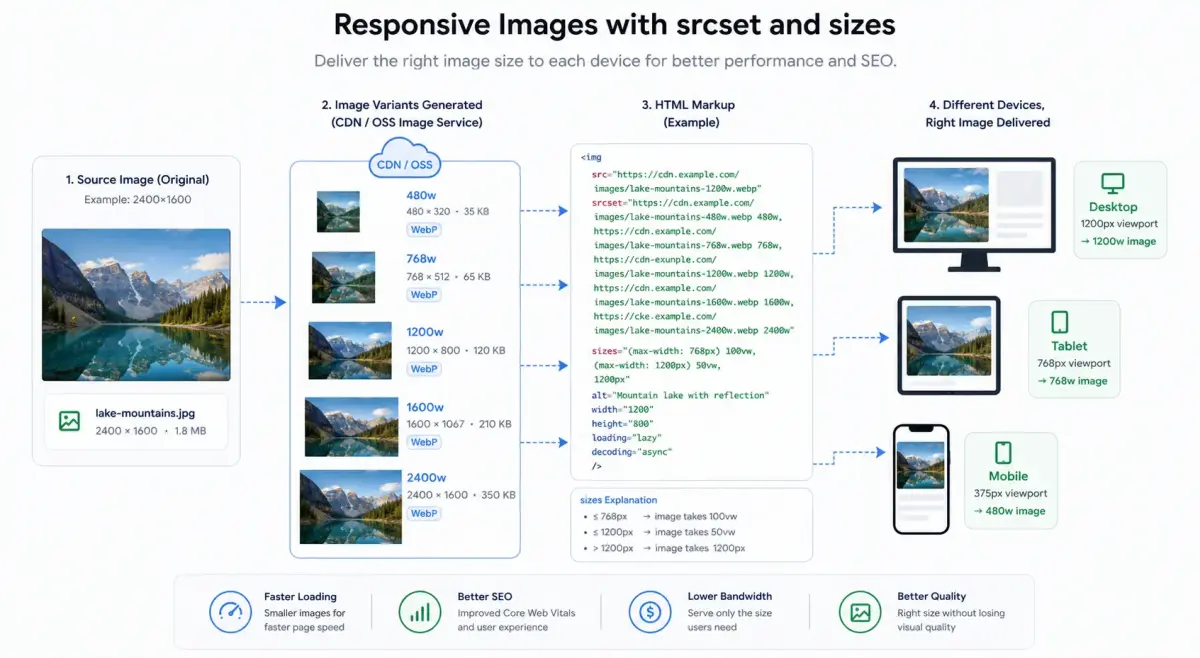
Do not serve the same oversized image to every device. Use `srcset` and `sizes` so that different screens receive appropriately sized image variants.
That works best when all devices use the same image and only the delivered size changes.If desktop and mobile need different images, different crops, or different ratios, the HTML `<picture>` element is usually a better fit because the browser can choose the right resource before the request is made.
For example:
<picture>
  <source media="(min-width: 768px)" srcset="/images/banner-desktop.webp" />
  <img src="/images/banner-mobile.webp" alt="Private jet service" />
</picture>
In short, use `srcset` for responsive sizing of the same image, and use `<picture>` when the actual image resource changes. For a deeper walkthrough, see Responsive Images for SEO: When to Use the HTML Picture Element
Also set image width and height, or at least reserve aspect ratio space, to reduce layout shift.
If your images are stored in object storage or behind a CDN, you can generate multiple size variants at the asset level and return them through `srcset`. That approach works especially well for content-heavy sites because it keeps CDN caching efficient while improving responsive delivery.
A common real-world setup looks like this: upload one original image to object storage, then let the image service return different size and quality variants from that single source file.
For example:
- - the original asset lives at `https://cdn.example.com/articles/image-seo/cover.webp`
- - desktop users receive a `1200w` version
- - tablet users receive a `768w` version
- - mobile users receive a `480w` version
If your object storage service or CDN supports image processing, you usually do not need to upload three separate files. Instead, you can request different output variants by appending image style parameters to the same original asset, for example:
<img
  src="https://cdn.example.com/articles/image-seo/cover.webp?x-oss-process=image/resize,w_768/quality,q_75"
  srcset="
    https://cdn.example.com/articles/image-seo/cover.webp?x-oss-process=image/resize,w_480/quality,q_75 480w,
    https://cdn.example.com/articles/image-seo/cover.webp?x-oss-process=image/resize,w_768/quality,q_75 768w,
    https://cdn.example.com/articles/image-seo/cover.webp?x-oss-process=image/resize,w_1200/quality,q_75 1200w
  "
  sizes="(max-width: 768px) 100vw, 768px"
  alt="Image SEO cover"
/>
You can think of the flow like this:
- - upload one original image
- - object storage or the CDN generates multiple size and quality variants
- - the frontend exposes those variants through `srcset`
- - the browser picks the best image for the current screen
The responsive image diagram below represents exactly that process: one original image goes into object storage or CDN processing, then multiple optimized variants are delivered to different devices.
An easy detail to miss:
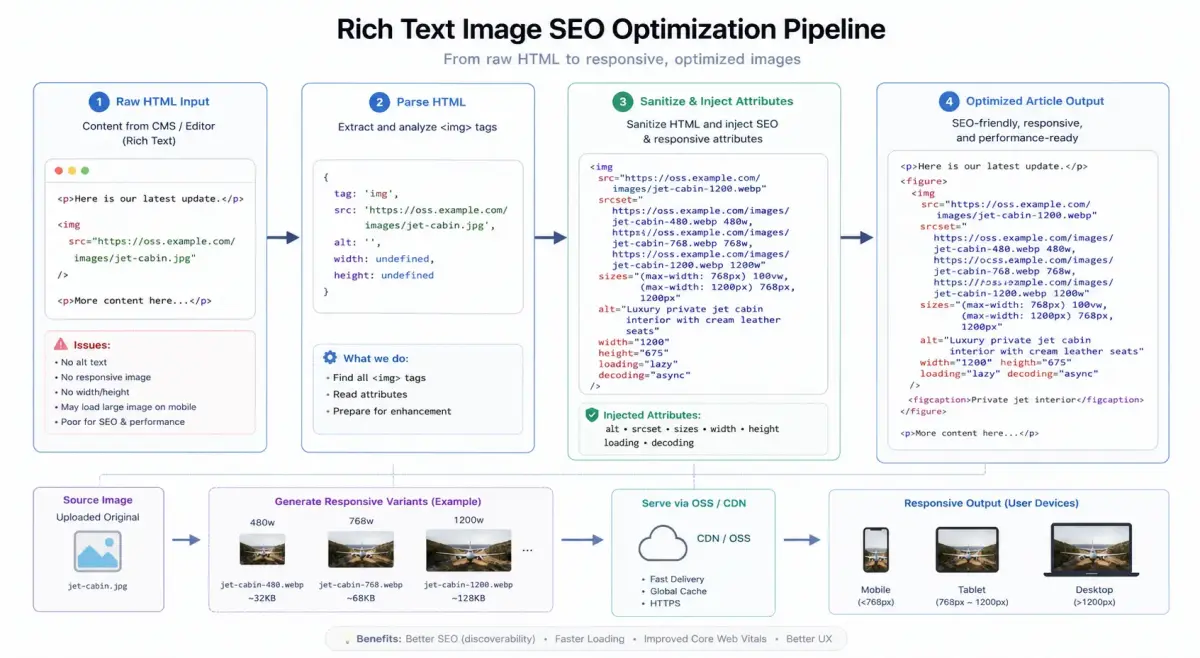
Article content often lives in rich text fields, and the `<img>` tags inside that HTML usually include only a `src` attribute. They often do not include `srcset`, `sizes`, `width`, or `height`.
That means a page may look finished on the surface while still sending oversized original images to mobile devices, hurting load time and image performance.
A practical solution is to parse the rich text HTML before rendering, extract image tags with tools like `sanitize-html`, and inject responsive attributes such as `srcset`, `sizes`, dimensions, and sometimes `loading`. That way, even if the editor stores only one original image URL, the rendered page can still output responsive multi-size image markup.
import sanitizeHtml from "sanitize-html";
function buildSrcSet(src: string) {
  const cdnWidths = [480, 768, 1200];
  return cdnWidths
    .map((width) => `${src}?x-oss-process=image/resize,w_${width} ${width}w`)
    .join(", ");
}
export function optimizeRichTextImages(html: string) {
  return sanitizeHtml(html, {
    allowedTags: sanitizeHtml.defaults.allowedTags.concat(["img"]),
    allowedAttributes: {
      ...sanitizeHtml.defaults.allowedAttributes,
      img: ["src", "alt", "title", "width", "height", "srcset", "sizes", "loading", "decoding"],
    },
    transformTags: {
      img: (_tagName, attribs) => {
        const src = attribs.src || "";
        const alt = attribs.alt || "";
        const width = attribs.width || "1200";
        const height = attribs.height || "675";
        return {
          tagName: "img",
          attribs: {
            ...attribs,
            src,
            alt,
            width,
            height,
            srcset: buildSrcSet(src),
            sizes: "(max-width: 768px) 100vw, 768px",
            loading: "lazy",
            decoding: "async",
          },
        };
      },
    },
  });
}
If you use Next.js, review whether the default image optimization path fits your delivery strategy. In some deployments, routing remote images through the Next.js server can be less cache-efficient than serving pre-sized CDN variants directly, especially when mobile Core Web Vitals are a priority.
Add an image sitemap
An image sitemap helps search engines discover important images, especially on large content sites, image-heavy libraries, and CMS-driven websites.
If your images are already included in standard crawlable HTML through regular `<img>` tags, an image sitemap may not always be necessary. However, it becomes more useful when you have large image collections, separate image domains, or content structures where images are not easily discovered through normal crawling.
In other words, an image sitemap strengthens discoverability rather than replacing good HTML structure.
A practical example looks like this:
- - your article page lives at `https://example.com/articles/image-seo-guide`
- - but the actual images are hosted on a separate object storage or CDN domain such as `https://cdn.example.com/content/image-seo-guide/cover.webp`
- - those images may also have multiple size variants, and some of them may be inserted dynamically through rich text content
In that setup, Google may still discover the images through the page HTML, but an image sitemap gives search engines a clearer signal about:
- - which page is associated with which important images
- - where the real image URLs live
- - which images are worth crawling and indexing
For example, a simplified image sitemap entry might look like this:
<url>
  <loc>https://example.com/articles/image-seo-guide</loc>
  <image:image>
    <image:loc>https://cdn.example.com/content/image-seo-guide/cover.webp</image:loc>
  </image:image>
  <image:image>
    <image:loc>https://cdn.example.com/content/image-seo-guide/responsive-images-diagram.webp</image:loc>
  </image:image>
</url>
If your site contains many articles, case studies, rich text pages, or images hosted outside the main page domain, an image sitemap is often more reliable than simply waiting for Google to discover everything on its own.
Improve page speed and Core Web Vitals
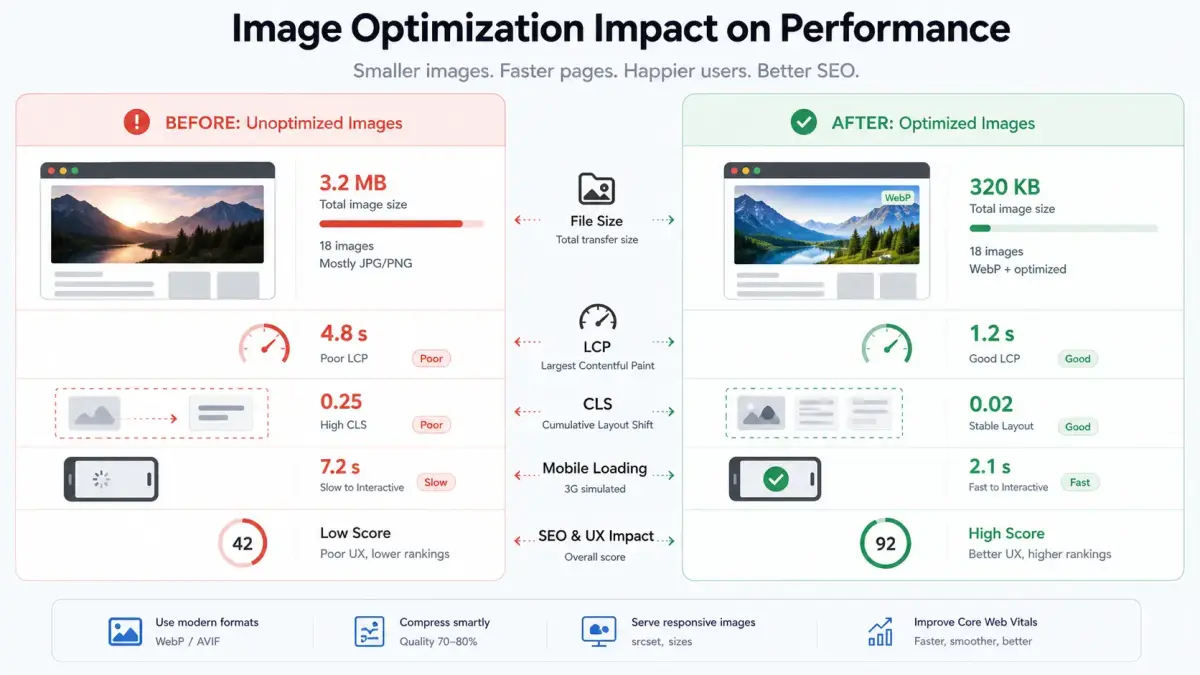
The main above-the-fold image should usually load with high priority because it often affects LCP. Non-critical images can be lazy-loaded so the browser does not waste time processing assets that are not yet visible.
However, the main hero image should not be lazily loaded if it delays the first meaningful visual content.
Explicit image dimensions also matter because they help reduce CLS. If a page contains image grids, cards, or long lists, `Intersection Observer` can be used to load or even render only the images near the viewport. That reduces decoding work, memory usage, and layout overhead, especially on mobile devices.
import { useEffect, useRef, useState } from "react";

export function LazyImage({ src, alt }: { src: string; alt: string }) {
  const containerRef = useRef<HTMLDivElement | null>(null);
  const [visible, setVisible] = useState(false);
  useEffect(() => {
    const element = containerRef.current;
    if (!element) return;
    const observer = new IntersectionObserver(
      (entries) => {
        for (const entry of entries) {
          if (entry.isIntersecting) {
            setVisible(true);
            observer.disconnect();
            break;
          }
        }
      },
      { rootMargin: "200px" }
    );
    observer.observe(element);
    return () => observer.disconnect();
  }, []);

  return (
    <div ref={containerRef} style={{ minHeight: 240 }}>
      {visible ? <img src={src} alt={alt} loading="lazy" decoding="async" /> : null}
    </div>
  );
}
Common image SEO mistakes to avoid
Many image SEO problems come from weak fundamentals rather than advanced technical limitations. Common mistakes include:
- - uploading oversized original files
- - using generic file names
- - skipping alt text
- - stuffing keywords into alt attributes
- - serving the same large image to every device
- - lazy-loading the primary above-the-fold image
- - ignoring dimensions
- - relying on CSS background images for content that should be indexable
Each issue may look minor on its own, but together they can hurt speed, accessibility, and search performance.
Image SEO checklist
Before publishing, check the following:
- - use the right image format
- - compress images properly
- - use descriptive file names
- - add meaningful alt text
- - deliver responsive sizes
- - set image dimensions or reserve aspect ratio
- - prioritize hero images
- - lazy-load non-critical images
- - add an image sitemap when needed
- - upgrade rich text images with responsive attributes
- - keep the mobile image delivery path lightweight
Conclusion
Image SEO is not a single tactic. It is a combination of accessibility, performance, relevance, and discoverability. The strongest results usually come from treating images as a structured part of the content system, rather than as an afterthought.